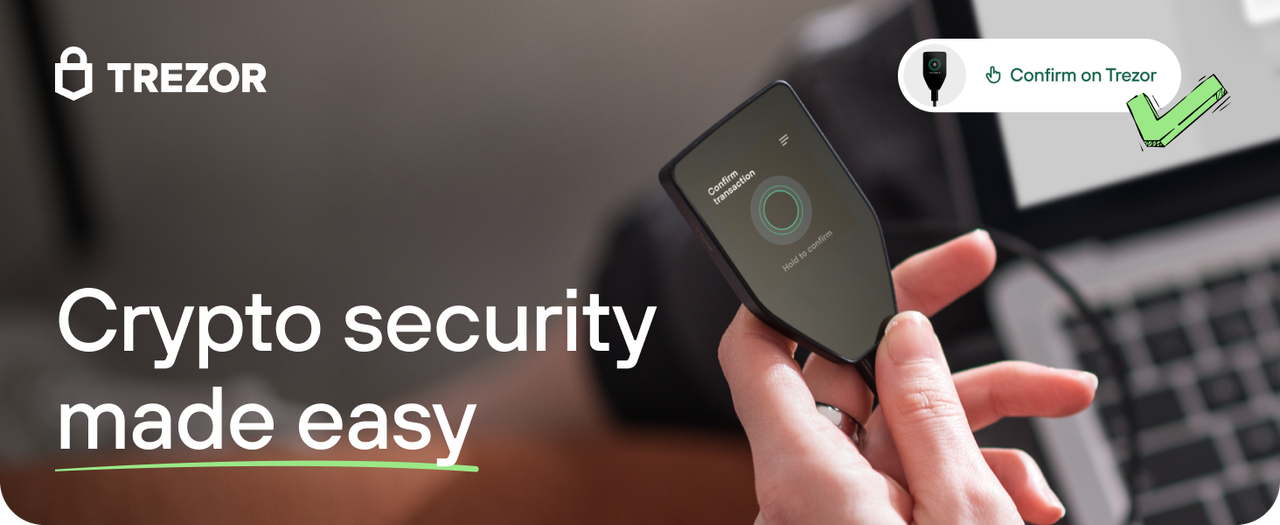
What is Trezor Login?
Trezor Login refers to the secure authentication process used to access your cryptocurrency wallet through Trezor hardware devices. Unlike traditional software wallets that store private keys on internet-connected devices, Trezor keeps your keys isolated in a secure hardware environment, significantly reducing vulnerability to online threats.
Trezor, developed by SatoshiLabs, was the world's first hardware wallet, setting the standard for secure cryptocurrency storage. The Trezor Login process ensures that your private keys never leave the device, providing a secure bridge between your digital assets and the online world.
Key Point: Trezor Login isn't just about accessing your funds—it's about doing so in the most secure way possible, protecting your assets from hackers, malware, and phishing attacks.
How Trezor Login Works
The Trezor Login process combines hardware security with user-friendly software interfaces. When you want to access your cryptocurrency wallet or authorize a transaction, the process involves several security layers:
1 Connection
Connect your Trezor device to your computer or mobile device using USB or Bluetooth (depending on the model).
2 Authentication
Enter your PIN directly on the Trezor device's display. This prevents keyloggers from capturing your credentials.
3 Verification
The Trezor device communicates with the wallet interface, verifying your identity without exposing private keys.
This process ensures that sensitive operations like transaction signing happen within the secure environment of the Trezor device, while only safe information is exchanged with your computer.
Setting Up Trezor Login for the First Time
Initial Setup Process
- Unbox and Connect: Start by connecting your new Trezor device to your computer using the provided USB cable.
- Install Trezor Bridge: Download and install Trezor Bridge, the communication software that allows your browser to interact with the Trezor device.
- Visit Trezor Wallet: Go to wallet.trezor.io in your web browser to begin the setup process.
- Device Initialization: Follow the on-screen instructions to initialize your device, which includes:
- Installing the latest firmware
- Creating a new wallet or recovering an existing one
- Setting up your PIN protection
- Backup Your Recovery Seed: This is the most critical step. Write down the 12-24 word recovery phrase provided by your Trezor device and store it in a secure, offline location.
Security Tip: Never store your recovery seed digitally or share it with anyone. This phrase is the master key to all your cryptocurrencies stored on the Trezor device.
Security Features of Trezor Login
Offline Key Storage
Private keys are generated and stored exclusively on the Trezor device, never exposed to your computer or the internet.
PIN Protection
Each login requires a PIN entered directly on the device, protecting against keyloggers and screen capture malware.
Recovery Seed
A 12-24 word mnemonic phrase allows you to recover your wallet if the device is lost, stolen, or damaged.
Passphrase Protection
Optional passphrase adds an additional security layer, creating a "hidden wallet" within your standard wallet.
Transaction Verification
All transactions must be physically confirmed on the Trezor device display, preventing malicious software from altering transaction details.
Firmware Verification
Trezor devices verify firmware integrity during startup, protecting against tampered or malicious firmware installations.
Troubleshooting Common Trezor Login Issues
Connection Problems
If your Trezor device isn't being recognized:
- Try a different USB cable or port
- Ensure Trezor Bridge is installed and running
- Check if your browser supports Trezor (Chrome, Firefox, or Brave recommended)
- Try restarting both your computer and the Trezor device
Forgotten PIN
If you've forgotten your PIN:
- You'll need to wipe the device and restore it using your recovery seed
- This process will erase all data on the device, so ensure you have your recovery phrase available
- After restoration, you can set a new PIN
Device Not Responding
If your Trezor becomes unresponsive:
- Disconnect and reconnect the device
- Try using a different computer
- Check the official Trezor support page for device-specific troubleshooting
- As a last resort, you may need to reset the device using your recovery seed
Advanced Trezor Login Features
Using Trezor with Third-Party Wallets
Trezor devices are compatible with various third-party wallets and services, including:
- MetaMask (via Trezor Connect)
- Exodus Wallet
- MyEtherWallet
- Electrum (for Bitcoin)
These integrations allow you to use your Trezor's security features while accessing different blockchain ecosystems and DeFi platforms.
Password Manager Integration
Beyond cryptocurrency, Trezor devices can function as hardware authentication for password managers like:
- Bitwarden
- KeePass
This extends the security benefits of hardware authentication to your general online accounts.
SSH and GPG Authentication
For developers and security professionals, Trezor devices can store SSH and GPG keys, providing secure authentication for servers and encrypted communications.